
YouTube Create: Video editor
Google LLCVideo Players & Editors
4.61.95K Reviews
- Version
- Varies With Device
- Installs
- 10.00M
- Age Rating
- Teen
Screenshots
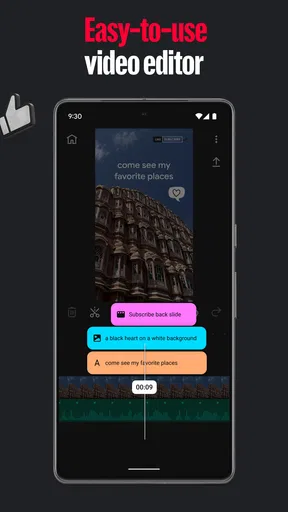
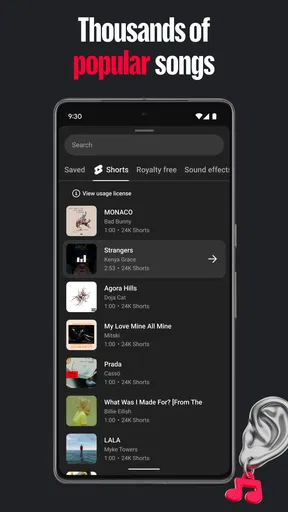
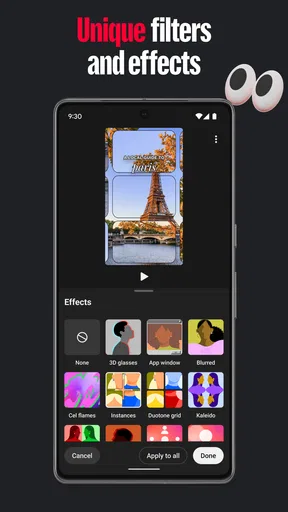
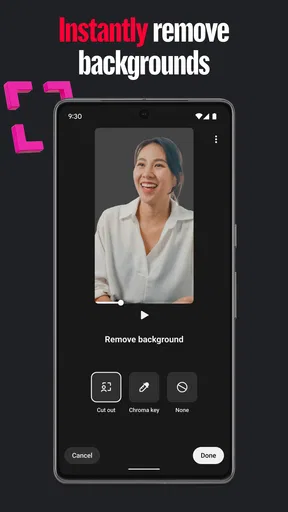
Our Review of YouTube Create: Video editor
 Analysis by Appyee
What caught my attention about YouTube Create is not simply that it edits video on a phone. The more useful idea is the way it brings the basic steps of making a YouTube-ready clip into one focused workspace: trimming, arranging, improving, and preparing a short video without asking me to move between several separate apps. I see it as a practical tool for people who already have footage on their Android device and want to turn it into something watchable without learning a desktop editor first.
It is a free video player and editing app from Google LLC, aimed at creators rather than professional post-production teams. The app is currently presented as being in beta, which matters because I would approach it as a convenient creator tool that is still developing, not as a complete replacement for a full editing suite. Its average rating is 4.7 from around 102 thousand ratings, and it has passed 10 million installs, so it has clearly attracted a substantial audience. It is rated for Teen users, and its release date was September 15, 2023.
Why the all-in-one editing workflow matters
The central capability is the reduction of friction. When I make a quick video, the hardest part is often not cutting a clip. It is the chain of small interruptions around that cut: finding the right file, deciding where the opening should begin, making the pacing feel less flat, adding sound, and exporting something that looks intentional. A mobile editor that keeps those steps together can save more time than a tool with a longer feature list but a more confusing workflow.
YouTube Create is especially interesting for short-form creators, casual vloggers, students, small businesses, and anyone who records directly on a phone. I can imagine using it after filming a quick demonstration, a travel moment, a recipe, or a product update. Instead of treating every video as a major production, the app encourages a faster loop: record, shape the material, add enough polish, and publish when the idea is still timely.
That focus gives the app a different personality from a traditional desktop editor. Desktop software is usually built around precision, layers, and long projects. YouTube Create feels more suitable when the finished video needs to be clear and engaging rather than technically elaborate. The real advantage is not unlimited control; it is getting from raw phone footage to a usable social video with fewer decisions.
This distinction is important before installing it. If I wanted cinema-style color work, complex compositing, detailed audio mixing, or a carefully managed multi-camera project, I would choose a more advanced editor. If I wanted to turn several phone clips into a clean, understandable video during a lunch break, this app would make more sense.
What the focused workflow changes
A beginner often assumes that better editing means adding more effects. In practice, the biggest improvement usually comes from removing dead time, putting the clearest moment first, and making the audio easier to follow. A focused mobile editor helps me concentrate on those fundamentals instead of getting lost in a large interface.
That is also why the app can be useful even for people who have tried other editors and abandoned them. Many mobile tools are packed with templates, decorative effects, and promotional elements. Those can be fun, but they can also distract from the actual story. Here, I would use the workspace as a checklist: keep the strongest material, establish context quickly, and add only the finishing touches that support the message.
There is a subtle trade-off in that simplicity. A smaller set of decisions can make editing faster, but it can also feel restrictive when I have a very specific visual idea. The app works best when I accept that its job is to help me finish a good mobile video, not to reproduce every possibility of desktop software.
How I would use it from footage to finished clip
I would begin by importing or selecting the clips that belong to one idea rather than dumping every recording from the day into the project. That small habit makes a major difference. A phone camera may collect several nearly identical takes, accidental pauses, and clips with weak framing. Choosing the material first keeps the editing stage focused and prevents the timeline from becoming a storage area.
Next, I would build the opening around the clearest promise of the video. For a tutorial, that might be the finished result. For a personal clip, it might be the most expressive moment. For a small business update, it might be the product or problem being addressed. This is one of the most useful ways to work in a short-form environment: the first seconds should tell the viewer why continuing is worthwhile.
Once the order feels right, I would trim aggressively. I do not mean cutting every natural pause. A short breath can make a speaker sound human, while a long search for words can make the video feel unprepared. I would watch each transition once with the sound on and once with the sound off. With sound off, awkward visual jumps become easier to notice. With sound on, I can catch cuts that interrupt a sentence or make the rhythm feel rushed.
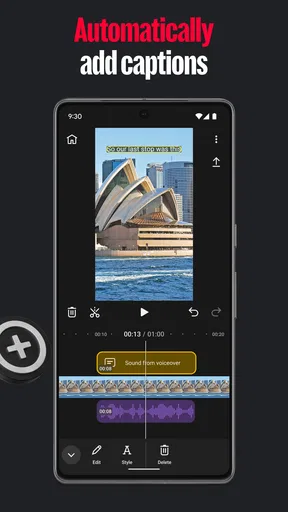
For a talking video, captions are more than decoration. They help when the viewer is watching in a noisy place, and they make the main point easier to follow. I would still review any automatically generated text carefully rather than assuming every word is correct. Names, technical terms, accents, and background noise can all create mistakes. The practical lesson is simple: treat captions as an editing pass, not as a button I press and forget.
Sound deserves more attention than many new creators give it. A visually attractive clip with distracting background noise is difficult to watch. I would listen through headphones before publishing, especially if the recording includes speech over music. The music should support the voice rather than compete with it. This is also where I would keep transitions restrained; a loud musical change or unnecessary effect can make a small edit feel less polished instead of more polished.
One workflow I find particularly useful is creating a clean master version before adapting the same material for different placements. I would first make the story work without relying on a trendy effect or a particular screen layout. Then I would decide whether the video needs a tighter cut, a different opening, or more prominent text for the intended audience. This prevents the common mistake of building the entire edit around a visual treatment before confirming that the underlying video is clear.
A realistic everyday example
Imagine I have recorded a short phone video showing how I prepare a simple meal. The raw material might include an introduction, several close-ups, a pause while I find an ingredient, and a final shot of the plate. In YouTube Create, I would remove the searching and repeated takes, place the finished dish near the beginning, and then return to the preparation steps. A few well-chosen captions could identify ingredients or explain a key step without forcing me to narrate every detail.
I would keep the final result compact, but I would not cut so heavily that the instructions become confusing. If the background is louder during one step, I would check whether the voice remains understandable before adding music. I would also watch the completed video on the phone itself, because a caption that looks comfortable while editing may feel too small or too close to the edge during normal viewing.
The same approach works for a school presentation or a small shop update. A student can combine an explanation with supporting footage, while a shop owner can show a product, its use, and a clear closing message. The app is valuable here because the workflow is close to the place where the footage was captured. There is less need to transfer files, rename everything, or learn a complicated project structure.
Small habits that improve the result
I would keep the first edit deliberately plain. Before adding music, captions, or visual polish, I would check whether the sequence makes sense on its own. If it does not, effects will only hide the problem temporarily. This is a useful test because it separates a storytelling issue from a presentation issue.
I would also duplicate my thinking, not necessarily my files: first edit for clarity, then edit for pace. On the clarity pass, I ask whether a viewer can understand what is happening. On the pace pass, I remove repeated information and long gaps. Combining both questions too early can lead to cuts that are fast but confusing.
Finally, I would leave space around important text. Phone screens vary, and viewers may watch with interface elements around the video. Text placed too close to an edge can become difficult to read or partially obscured. A simple, readable caption is usually more useful than a crowded block of words competing with the footage.
The best situation for using it
The strongest scenario is a creator who publishes regularly but does not want every upload to become a technical project. For that person, speed and consistency matter. A repeatable process is more valuable than a spectacular feature used once. YouTube Create can fit a routine where I film on the phone, edit the essential story immediately, check the sound and captions, and move on to the next idea.
It is also a good match for vertical-first content and short explanations. A local service provider could record a quick answer to a customer question. A teacher could prepare a concise visual reminder. A traveler could assemble a day highlight while still on the trip. In each case, the app earns its place by reducing the distance between recording and sharing.
Another strong use is editing material captured in imperfect conditions. Phone footage often contains extra moments because I start recording before the important action and stop afterward. A quick editor helps me rescue the useful section without requiring a formal production setup. That does not make poor footage magically professional, but it does make ordinary footage easier to organize.
I would be more cautious about using it for a long interview, a documentary with many sources, or a project that needs exact synchronization between several audio and video tracks. Those jobs benefit from a larger screen, more timeline visibility, and deeper control. A mobile workflow can still handle planning cuts, but it may become tiring when the project grows beyond a straightforward sequence.
Where it stands beside familiar alternatives
Compared with a full desktop editor, YouTube Create is easier to approach but less suitable for detailed finishing. Desktop tools usually win when I need precise keyframes, extensive track management, complex audio treatment, or a carefully organized archive of assets. Their strength is control. The cost is time, hardware, and a steeper learning curve.
Compared with template-driven social editors, this app is more appealing when I want the footage and message to lead. Templates can produce a quick visual style, but they may push every video toward the same rhythm. I would choose a template-heavy alternative when I need a fast promotional look or a playful montage. I would choose YouTube Create when I want the story to feel like my own material rather than a preset.
Compared with editing directly inside a social platform, a separate creator app can encourage a more deliberate master edit. I can review the sequence before committing it to a particular posting screen or trend. That is useful when I want to reuse the core idea elsewhere, although I would still check the final framing and captions for the destination where I plan to publish.
The trade-offs I would consider before installing
The first trade-off is simplicity versus depth. A beginner benefits from not seeing a wall of technical controls, but an experienced editor may quickly notice the boundaries. If I already work comfortably with advanced software, I would not expect this app to become my main professional workstation. It is better understood as a fast mobile production tool.
The beta status is another practical consideration. I would keep my original clips until I was satisfied with the exported result, and I would avoid treating one mobile project as the only copy of important work. That is not a criticism unique to this app; it is sensible whenever software is still evolving. A creator who needs a highly predictable, locked-down workflow may prefer a more mature editor.
There is also the physical limitation of editing on a phone. A touchscreen is convenient for quick trimming, but it gives me less room to compare many clips or inspect fine timing than a monitor does. Long sessions can become tiring, particularly when I am trying to judge small audio or caption details. I would use the app for focused edits rather than forcing a large production into a tiny workspace.
Another limitation is that good results still depend on the original recording. The app can help me remove pauses and organize ideas, but it cannot fully repair badly framed footage, muffled speech, or inconsistent lighting. I would improve the recording habit first: face a light source, move the phone closer to the speaker, and record a short test before capturing the full explanation.
Storage and attention are practical concerns too. Video projects can occupy significant space, and repeated versions can become confusing if I save them without a naming habit. I would keep only the clips that belong to the current idea in the working project and archive the originals separately when the video matters. A minute spent organizing material can save much more time later.
Questions I would ask during the first week
Is it suitable for a complete beginner? In my view, yes, provided the beginner starts with a short project rather than a large collection of footage. The best learning exercise is a simple sequence with a beginning, middle, and end. Once trimming and ordering feel comfortable, captions, music, and other finishing choices become easier to judge.
Can it replace a computer editor? For quick creator videos, it may replace one in a practical sense. For demanding projects, I would not make that assumption. The right test is not whether the app has a long feature list; it is whether the project requires controls that are uncomfortable or unavailable on a phone. If the answer is yes, I would move the more complex work to desktop software.
Should I use it for every social platform? I would use it to create a strong base edit, then check how that edit fits each destination. Different platforms can encourage different durations, framing choices, and caption placement. The app can simplify the creation stage, but it does not remove the need to think about the audience and viewing context.
Is the free price enough for a serious trial? Yes. Since the app is free, I can test its workflow without making a financial commitment. I would spend a few sessions on real projects rather than judging it from a single experiment. The important question is whether it helps me publish more consistently and with less frustration.
Who should skip it? I would point advanced editors toward a deeper tool if they need extensive manual control, and I would point people who only want instant decorative templates toward an editor built around presets. I would also skip it for a major project if I had no reliable way to keep the original footage and finished versions organized.
Who gets the most from this editor
The best audience is someone who has ideas, footage, and limited patience for technical setup. That includes a new YouTube creator learning the basics, a busy person making occasional videos, and a small organization that needs clear updates without a dedicated production team. The app rewards a practical editing mindset: say one thing, show it clearly, and remove anything that delays the point.
I also think it suits creators who want to improve their judgment rather than hide behind effects. Because the workflow is centered on shaping the footage, it encourages me to notice pacing, audio clarity, and the order of information. Those skills transfer to more advanced editors later. In that sense, the app can be a useful stepping stone, not merely a shortcut.
My recommendation is therefore fairly specific. I would install YouTube Create if I mainly record on Android, make short or moderate-length videos, and value a direct path from camera roll to finished upload. I would keep expectations realistic about the beta stage and mobile limitations, but I would still consider the free download worthwhile for testing a faster routine.
After using it with that purpose, I see its strongest quality as making completion feel achievable. It does not turn every recording into a professional production, and it should not be judged by that standard. Its value is in helping me make the important decisions sooner: what stays, what goes, what the viewer needs to hear, and where the video should begin. For the right creator, that focused workflow is more useful than a larger toolbox that never gets opened.
Privacy and Permissions
See what permissions an app requests and how it handles your data.
- Identity
- find accounts on the device, add or remove accounts
- Contacts
- find accounts on the device
- Photos/Media/Files
- read the contents of your USB storage, modify or delete the contents of your USB storage
- Storage
- read the contents of your USB storage, modify or delete the contents of your USB storage
- Camera
- take pictures and videos
- Microphone
- record audio
- Wi-Fi connection information
- view Wi-Fi connections
- Other
- view network connections, measure app storage space, full network access, change your audio settings, run at startup, control vibration, prevent device from sleeping, read Google service configuration
Verdict
Strengths of YouTube Create: Video editor
- Free video editor with no subscription required for core tools.
- Designed for quick editing directly on Android and iOS devices.
- Includes royalty-free music and sound effects for safer publishing.
- Automatic captions can improve accessibility and viewer engagement.
- Exports videos in formats suited to YouTube Shorts and social platforms.
Limitations of YouTube Create: Video editor
- Some advanced editing features found in desktop software are missing.
- Performance may drop when editing long or high-resolution projects.
- The music library can feel limited for creators seeking niche styles.
- Cloud-based features may require a stable internet connection.
- Availability of certain tools can vary by device, region, or account.
Other Releases by Google LLC
View All
Google Calendar
Productivity4.6

Google Messages
Communication4.6

Tools4.0

Google TV
Video Players & Editors3.9
Similar Picks in This Category
View AllGoogle TV
Google LLC3.9

iTunes
Apple4.7

YouTube
Google LLC3.8

MX Player
Amazon Mobile LLC4.2

CapCut - Video Editor
Bytedance Pte. Ltd.3.5

PLAYit-All in One Video Player
PLAYIT TECHNOLOGY PTE. LTD.4.5
Frequently Asked Questions
What is YouTube Create, and who is it designed for?
YouTube Create is YouTube’s mobile video-editing app for creating Shorts and longer videos directly from a phone or tablet. After testing its workflow, it feels aimed at beginners and creators who want quick editing tools without learning complex desktop software. It includes trimming, splitting, transitions, filters, effects, text, captions, music, sound effects, voiceover recording, and simple timeline editing.
Is YouTube Create free to download and use?
Yes, YouTube Create is generally available as a free app, although availability can depend on your country, device, operating system, and account requirements. The core editing tools are designed to be used without a paid subscription. Before downloading, check the official app listing because supported regions and features may change. You should also review any music, media, or cloud-related limitations before publishing commercial content.
Can I use YouTube Create to edit and publish videos directly to YouTube?
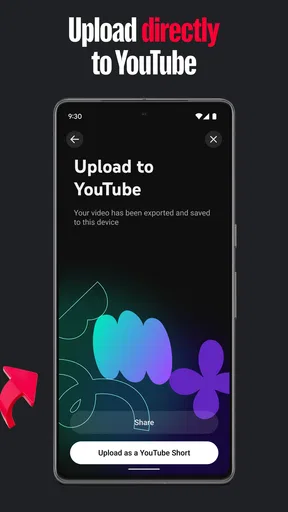
Yes. YouTube Create is built around the YouTube publishing experience, so finished projects can be exported and uploaded to YouTube, including Shorts. The app makes it convenient to move from editing to publishing, but you still need to review the title, description, visibility, audience settings, thumbnail options, and copyright information before posting. Export time depends on video length, resolution, and device performance.
Does YouTube Create provide royalty-free music and copyright-safe audio?
YouTube Create includes access to music and sound options intended to help creators add audio without searching through complicated editing software. However, users should not assume that every track is unrestricted for every platform or commercial purpose. Always read the displayed usage information and confirm whether an audio choice is cleared for monetized content. Original voiceovers and properly licensed music remain the safest options.
What phones and permissions are required to use YouTube Create?
YouTube Create requires a compatible Android or iOS device, and exact support can vary by region, operating-system version, and hardware. The app may request access to photos or videos, a microphone for voiceovers, and possibly notifications or account features. Video editing can use considerable storage and battery, especially with high-resolution footage, so keeping free space available and using an updated device is recommended.
